


You pick up the phone to check one thing, and when you look up, twenty minutes have gone. It happens at 11 p.m., in a quiet moment at work, or with the phone face up beside your plate at dinner. Nothing is wrong with you; the phone is built to be easy to reach for.
Three changes fit into the next five minutes. Turn off notifications from shopping, games and social apps, while keeping calls and messages from people. Move the one app you scroll most off your first screen. Tonight, put the charger in the kitchen or across the room.
Just over half of U.S. adults say they spend too much time on their smartphone, and 45 percent tried to cut back in the past year, according to a Pew Research Center survey. You are in good company. Below you'll find settings for iPhone and Android, places to keep the phone, ideas for the gaps, words for people who expect quick replies, and a plan for the night.
- Start with notifications Keep calls and messages from people; turn off shopping, game, news and social alerts.
- Make the phone a little harder to reach Move the apps you scroll most off the first screen and give the phone a spot at home.
- Plan what to do instead Choose something for five minutes, fifteen minutes and thirty minutes, and keep it where the phone usually rests.
- Tell people when you reply A simple message about when you check and how to reach you for urgent things settles most worries.
- Try it for a week, then adjust Keep, shrink or change each step. Nothing here is a rule.
Start with the notifications
Most unplanned phone pickups begin with a buzz or a banner, so notifications are the best place to start. Keep the ones you would be glad to get: calls, messages from people you know, calendar alerts and anything tied to safety. Turn off promotional, social, news, shopping and game alerts, since those are mostly invitations to open an app you had no plan to open.
On an iPhone, open Settings, tap Notifications, choose an app, and adjust or switch off its alerts; Apple's notification page walks through each option. On Android, open Settings, tap Notifications, choose an app, and turn off the categories you do not need, as Google's Digital Wellbeing help describes. Menu names vary a little by phone and software version, so use the search bar in Settings if something has moved.
You do not have to do every app in one sitting. Start with the three that interrupt you most, live with the quiet for a day, and turn a few back on if you miss them. A useful test is to ask whether a person or a business sent the alert; people usually stay, businesses usually go.
Make the phone a little harder to reach for
Small bits of friction work better than a promise to try harder. Move the apps you open on autopilot off your first Home Screen, or tuck them into a folder on the second page. Leave maps, banking, transit and work apps where your thumb finds them fast, because the goal is to slow down the reflex, not to make the useful parts annoying.
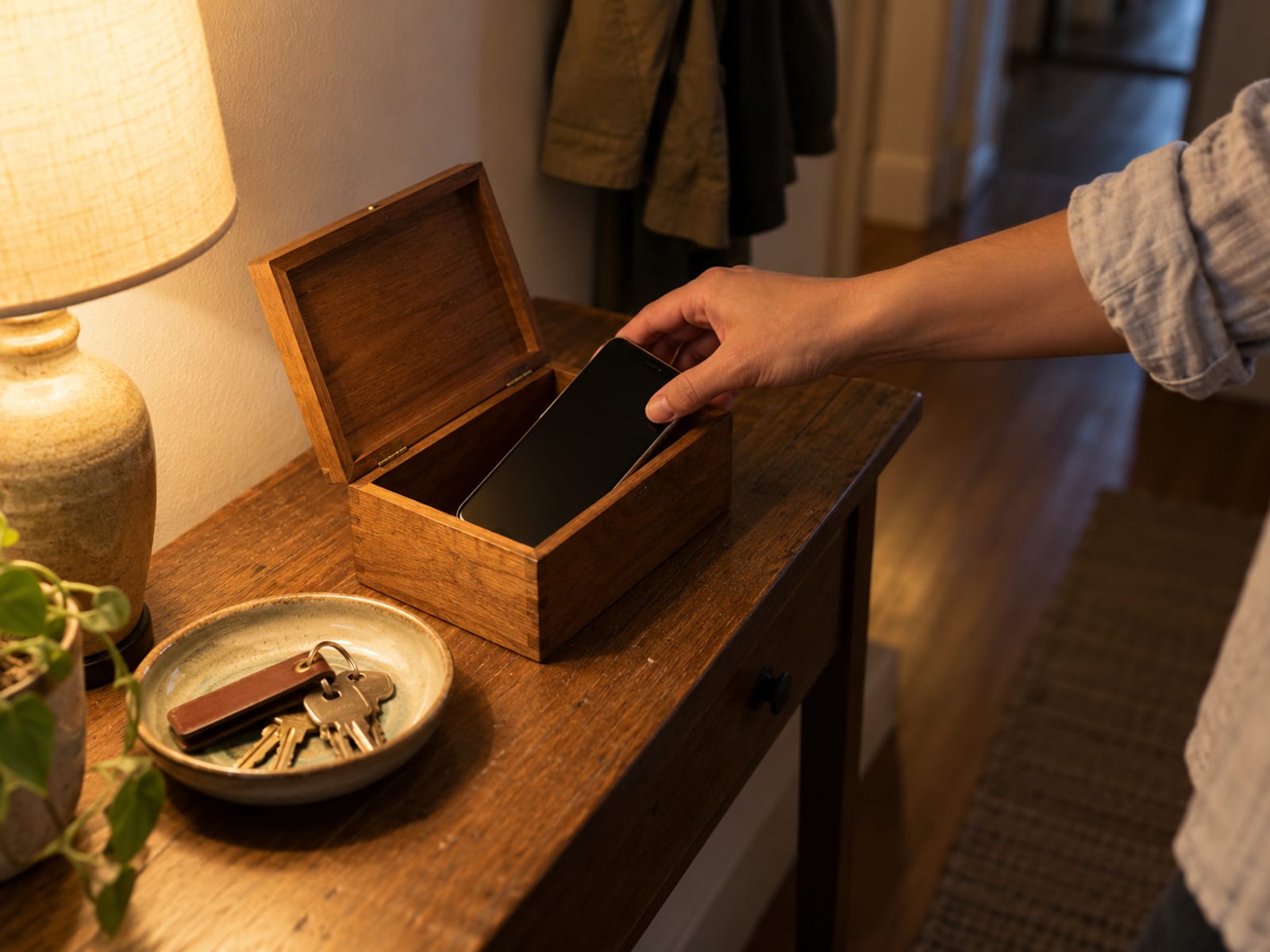
At home, give the phone a regular place that is not your pocket. A shelf, a drawer, or the kitchen counter all count, and none of them costs anything. If you are in the middle of a task, setting the phone in its spot takes five seconds and removes the quiet temptation to glance.
Grayscale is one more speed bump you can try, and it is a small one. On Android it lives in Digital Wellbeing under Bedtime mode, and on an iPhone you can find Color Filters in Accessibility. Some people find a gray screen less inviting; others notice nothing. Keep it if it helps and drop it if it does not.
Use the limits already built into your phone
Both kinds of phone come with tools for seeing where the time goes, and you can use them without installing anything. On an iPhone, Screen Time starts with turning on App and Website Activity. After a few days, read the report, then set an allowance for one app or one category. On Android, the Digital Wellbeing dashboard shows screen time, app openings and notifications, and you can set an app timer, a Focus mode that pauses chosen apps, and a Bedtime mode that quiets the screen at night.
One honest note: you can override these limits with a tap. That makes them a nudge rather than a lock, which suits most people, because you stay in charge of your own phone.
A few ideas to borrow, depending on your situation. On a tight budget in a shared home, keep the phone you have, switch off the nonessential alerts, move the distracting apps, and charge the phone in the kitchen after 9:30 p.m. with calls from the household still allowed. With a regular office schedule on Android, you might set a 30 minute timer on the app you open most and run Focus mode from 9:00 a.m. to noon. If you need work access on an iPhone, keep work calls and calendar alerts on, set a limit for entertainment apps, and leave the phone in a drawer during two 45 minute work blocks.
Parents and caregivers can keep the phone nearby for safety and use a favorites-only Do Not Disturb schedule, with a line like "Call twice if it is urgent." Anyone on night shifts can shift the quiet period to match their real sleep hours instead of the usual ones.
| Change | Example action | What it can change | Keep in mind |
|---|---|---|---|
| ChangeNotifications | Example actionKeep calls, messages from people, calendar and safety alerts | What it can changeFewer prompts to pick up the phone | Keep in mindAn important alert can be missed if settings are too strict |
| ChangeApp placement | Example actionMove your most-scrolled app off the first Home Screen | What it can changeAdds a small pause before opening | Keep in mindThe app is still installed and one tap away |
| ChangeGrayscale | Example actionTurn on a gray screen during work or at bedtime | What it can changeMakes the screen less inviting | Keep in mindSome people notice no difference |
| ChangeApp timer | Example actionSet a daily allowance for one app | What it can changeGives you a nudge when time is up | Keep in mindYou can override it, so it works as a prompt |
| ChangeFocus mode | Example actionPause chosen apps during a planned block | What it can changeCuts access and alerts for a set time | Keep in mindWork or school accounts may behave differently |
| ChangeBedroom boundary | Example actionCharge the phone outside the bedroom | What it can changeKeeps the bed separate from scrolling | Keep in mindPlan for emergency, on-call and caregiving needs |
| ChangeReplacement activity | Example actionLeave a book or notebook where the phone rests | What it can changeMakes the other option easy to start | Keep in mindThe urge may still show up |
What to do instead, and what to do with boredom
An empty gap is easier to leave alone when you already know what goes in it. Decide ahead of time, and put the replacement where the phone usually sits: a book on the nightstand, walking shoes by the door, a sketchbook on the table, a crossword on the arm of the couch.

With five minutes, you can breathe slowly, make tea, clear one surface, or read two pages. With fifteen, a walk around the block, some stretching, a few lines in a notebook, or a little practice on an instrument all fit. Thirty minutes opens up cooking, a craft, a chapter, or a household task you have been meaning to do. For waiting rooms and bus stops, a paperback, a puzzle or downloaded audio does the job, and everything here is free or close to it.
Boredom does not need an instant fix. If you want an experiment, try waiting ten minutes before you reach for the phone and see whether the urge changes. If you feel guilty about doing nothing, resting without guilt has a few thoughts on that. And where the phone is needed for safety, caregiving, navigation, accessibility or work, choose a narrower boundary instead of putting it away completely.
Evenings and nights
The bedroom is where the phone tends to win. Charging it outside the room, or at least across the room, keeps the last and first minutes of your day for something else. If the phone is only there for the alarm, a cheap clock or an old one from a drawer can take over that job.
Add a short wind-down with no screen, such as reading, which is also what the NHS suggests for relaxing before bed. Turn on Do Not Disturb, and decide who can still get through if you are a parent, on call, or looking after someone. For the rest of the evening routine, these sleep hygiene tips cover what to do with the hours around bedtime.
When people expect a quick reply
The hardest part is often other people. A short message ahead of time does most of the work: tell them when you check and what counts as urgent. You might say, "I check messages at noon and again around 5. Call me if something is urgent." Or, "I may not answer right away, but I will reply this evening." Or, "I am offline after 9:30 p.m. If you need me urgently, please call twice."

A status message can say the same thing without a long explanation, such as "Checking messages at 10:30 a.m., 1:30 p.m. and 4:30 p.m. Call for urgent issues." Someone who works from home might keep calls from a manager and the household on, mute social alerts during work blocks, and post a window like that.
At work, line your plan up with your real duties, on-call time, time zones, accessibility needs and workplace policy. Setting boundaries at work goes further into how to bring it up with a manager or team.
How much is too much, and when it is more than a habit
There is no single healthy number of hours for adults, so a question like "is 4 hours too much?" is better answered by what those hours crowd out. If the time is cutting into sleep, people, focus or work, it is worth a change. If it is a long call with a friend, a map for a road trip or a book on your phone, the same hours may be fine.
"Phone addiction" is everyday language and not a formal diagnosis for ordinary phone use, so plain words like heavy or unwanted use fit better. Heavy or unwanted use is linked with stress and low mood, and studies link heavier phone use with poorer sleep. It is hard to tell which comes first, and cutting back is not a cure for any of them.
If phone use keeps getting in the way of sleep, work, caregiving, money, driving safety or relationships, and changing it has not worked, a doctor or another health professional is a sensible first call. The same goes if low mood, anxiety, headaches or lasting sleep problems come along with it. When the demands come from a workplace or school, its support service can help too. Children and teens are a different situation, and a family doctor or school counselor is the place to start.
A short break from the phone can help you notice your habits, such as when you reach for it and what you were feeling just before. It does not reset anything, and you are not required to take one.
A first week, if you want one
Think of this as a light plan you can change, never a set of rules. Spread out, it stays gentle: notifications on day one, one app moved on day two, a phone spot for the evening on day three, then a chosen replacement, a message to the people who need to know, and a review on day seven.
Day 1
Turn off notifications from shopping, games and social apps. Keep calls and messages from people.
Day 2
Move the app you scroll most off the first screen.
Day 3
Pick a spot for the phone in the evening and use it tonight.
Day 4
Choose one thing to do in the gap and leave it where the phone usually rests.
Day 5
Tell the one person who needs to know when you will reply.
Day 6
Try a ten minute pause before reaching for the phone once.
Day 7
Review each step and decide whether to keep, shrink or change it.
If one step feels like too much, make it smaller instead of dropping it. Turning one change into a routine is easier when you tie it to something you already do, as how to build a habit explains.
1. Which notifications are usually worth keeping?
2. Work expects fast replies. What helps most?
3. What is an app timer best described as?
4. Where is a good place for the phone at night?
Questions people ask
How do I stop myself from using my phone so much?
Start with fewer reasons to pick it up and a little more effort to open the apps you use on autopilot. Turn off the alerts that are not from people, and move your most-scrolled app off the first screen. After that, choose what you will do in the gap so the empty space has something in it.
Is 4 hours on your phone too much?
There is no single healthy number for adults, and the same goes for 7 hours of screen time. A better question is what the hours are crowding out, such as sleep, time with people, focus or work. Four hours spent on calls, maps and reading means something different than four hours of scrolling you did not mean to do.
How can I tell if I am addicted to my phone?
"Phone addiction" is everyday language and not a formal diagnosis for most people, so a checklist will not settle it. Ask whether your phone use keeps getting in the way of sleep, work, the people around you or daily duties. If it does and changing it has not worked, talk with a doctor.
What can I do instead of scrolling?
Pick something small enough to start without thinking, and keep it where the phone usually rests. A few good ones are reading two pages, a walk around the block, a few lines in a notebook, cooking something simple, or a crossword. The section on what to do instead has more ideas by length of time, and all of them are free.
Can a few days without a phone reset your brain?
Nobody can promise a reset. A short break can help you notice when and why you reach for the phone, and that is useful on its own. You also do not need to fear your phone to change a habit.
How do I use my phone less at night?
Charge it outside the bedroom or across the room, and start a short wind-down without a screen. Turn on Do Not Disturb with a way for family or work to reach you in an emergency. These sleep hygiene tips cover the rest of the evening.
One thing to try this week
Pick the one change that fits your busiest day, probably turning off one noisy notification or moving the phone out of the bedroom tonight. Choose one thing to do in that gap, tell the person who needs to know when you will reply, and look back on the same day next week to decide whether to keep, shrink or change it. For more on caring for yourself day to day, Motivation Facts has a Self-care and Wellbeing section, and you can reach us through the contact page with a question or a topic you would like covered.
Notification. A banner, sound or buzz from an app that asks for your attention.
Screen time. The amount of time your screen is on and in use, which your phone can report to you.
App timer. A daily limit you set for one app that you can override when you need to.
Focus mode. An Android setting that pauses chosen apps and their alerts for a set period.
Do Not Disturb. A setting that silences calls and alerts, with exceptions you choose, such as favorites.
Grayscale. A display setting that turns the screen black, white and gray.
Response window. The times of day you tell people you check messages and reply.